
A pixel art style illustration of a pink arcade machine against a pink cityscape background with pixelated birds and clouds. Used to represent gaming concepts applied to executive assistant performance tracking and workplace contributions.

Buffs, debuffs, and things powering your performance (and why you should actively be looking for them)

I came across this article from the gaming world this week and it maps directly onto something we track in the Accomplishment Tracker.

What Are Buffs and Debuffs?

In games, a “buff” is an effect that boosts your character’s performance. Speed, strength, output. A “debuff” does the opposite. It drains you, slows you down, works against you.

Now map that onto your working life.

Your buffs are the things your employer provides that make you more effective. A manager who communicates clearly. Access to the right tools. Training. Being trusted with information early. These things shape your performance every single day, whether you are naming them or not.

Buffs are like Chrome extensions for your browser. They do not change what the browser is, they just make it capable of so much more. And just like extensions, once you know they exist you cannot imagine working without them.

Then you have the debuffs. Poor sleep and saying yes to too many tasks will drain your energy fast. A manager who does not communicate clearly leaves you constantly second guessing. Being left out of key conversations means you are always playing catch up. Identifying these energy vampires is the first step to doing something about them.

What is the Accomplishment Tracker and why does it matter?

The Accomplishment Tracker is one of our core tools inside The Officials and it is built specifically for assistants. Not a smile file. Not a brag book. Something smarter.

Most assistants only think about tracking their work when a performance review is looming. But your Accomplishment Tracker is not just for review season. It is for the days when you feel invisible, undervalued, or just plain exhausted. Open it and remind yourself that you are crazy talented and the receipts are right there.

It is also your career insurance. Evidence of what you have delivered, what you have handled, and what you have made possible. Go and check it out and see why ours beats anything else out there.

What are contributions and why should you be tracking them?

In our Accomplishment Tracker, we call these contributions and we know most of you aren’t tracking them. For example, if an Office Manager was in charge of an Office Move and noting it in their Accomplishment Tracker, under contributions they might put ample budget and autonomous decision making. These are the buffs the company gave them that made success possible. Feeding those back to your manager tells them exactly what they contributed to make that project work, so they know what to provide next time.

I was recently in a corporate training session introducing the Accomplishment Tracker to an admin team. When we got to the contributions section, their manager noted that it was a great way to get feedback from her team, something she said she sometimes struggled to get. Win win!

Your prompt

Open your Accomplishment Tracker. Look at your contributions. What is boosting you right now? What debuffs are quietly working against you? And what is missing that should be there?
Watch the replay

In this session, you’ll discover how playing certain types of games can actually train your brain to become quicker, more strategic, and more adaptable.

Access Premium HQ

And if you have not started your Accomplishment Tracker yet, today is a good day.


The Accomplishment Tracker and the Gaming session replay both require Premium HQ membership to access. Premium HQ is where the best admin pros in the world hang out and level up. Are you in?

🎉 Start today with a 14 day free trial!

Jump right into our online courses, templates, member only events, and more. Begin your journey to growth today!

Boost Your Productivity and Creativity: How Microsoft Designer Can Help Assistants Shine

In the fast-paced world of administrative professionals, assistants often wear multiple hats, managing everything from scheduling and project coordination to event planning and presentation design. It’s no wonder that finding tools that streamline workflows and simplify design tasks can be a real lifesaver! Microsoft Designer is one of those tools, bringing the power of AI-driven design and ease-of-use right into the hands of administrative professionals. Whether you’re handling social media, presentations, or creating team resources, this tool is worth exploring.

What is Microsoft Designer?

Microsoft Designer is an AI-powered design tool within Microsoft’s suite of apps that makes creating professional-looking visuals incredibly easy. If you’re familiar with other graphic design tools, such as Canva or Adobe Spark, you’ll recognize the same drag-and-drop interface and customizable templates, but with the added benefits of seamless Microsoft 365 integration and powerful AI features.

In a nutshell, Microsoft Designer can help you create high-quality visuals quickly, even if you don’t have a background in graphic design. This is especially helpful for assistants who need polished graphics but may not have the budget or time for extensive design work.

Key Features of Microsoft Designer

Microsoft Designer offers several features designed to make visual content creation easy and accessible for all skill levels. Here are some standout features:

  1. Templates for All Occasions
    Designer comes with a range of ready-made templates for social media posts, presentations, newsletters, and more. Whether you’re crafting an event flyer, preparing slides for a meeting, or creating a social media graphic, Microsoft Designer has templates that will help you get started with ease.
  2. AI-Powered Suggestions
    One of the most innovative features in Microsoft Designer is its AI-powered design suggestions. When you input your content, the tool automatically generates several design options based on your text and chosen theme. This means you can see multiple design possibilities instantly, saving you the time you might otherwise spend brainstorming ideas from scratch.
  3. Effortless Customization
    After choosing a template, you can easily personalize it with your colors, fonts, images, and logos to make it fit your brand. Designer allows you to import media from your device or even use the images and icons in its library, making customization a breeze.
  4. Collaboration Features
    With Microsoft Designer’s integration into Microsoft 365, sharing and collaborating on designs is simple. You can share drafts with your team members and even collect feedback directly within the document, streamlining the approval process.
  5. Seamless Microsoft 365 Integration
    If you’re using Microsoft 365, Designer integrates well with other Microsoft apps like PowerPoint, Word, and Outlook. This means you can easily move designs between these programs and use your visuals across different projects without hassle.

How Microsoft Designer Can Benefit Assistants

Here are some specific ways administrative professionals can leverage Microsoft Designer to make their workdays smoother:

1. Create Eye-Catching Event Invitations

Organizing an office event or a company outing? With Designer’s templates, assistants can quickly craft event invitations that look professional and polished, saving time for other event-planning tasks.

2. Design Presentation Slides

Presentation preparation is a big part of many assistants’ roles. With Designer, you can create slide templates and add engaging visuals that elevate the overall quality of the presentation. The AI suggestions are particularly useful when you’re pressed for time.

3. Social Media Content for Internal Communications

If you manage internal communications, creating graphics for announcements or social media-style posts can boost engagement within the company. Designer’s social media templates are a great fit for sharing announcements, team highlights, or employee recognition posts.

4. Save and Reuse Templates for Consistency

Brand consistency can be challenging when there’s limited time to create visuals from scratch. With Designer, you can create and save templates that reflect your company’s branding, allowing you to maintain a consistent look across all your materials. This is especially helpful when managing materials like newsletters or recurring event flyers.

5. Simplify Reporting and Data Presentation

Microsoft Designer can help assistants present data in a visually appealing way, whether in PowerPoint, Excel, or Word. It’s a perfect tool for creating infographics and charts that make information more digestible.

Accessing Microsoft Designer

It’s important to note that Microsoft Designer is currently available only through a personal Microsoft account and is not accessible via business accounts. This means that if you’re using a work account, you might need to set up a personal account to take advantage of Designer’s features. The good news? Microsoft Designer is completely free to use, making it an accessible tool for all assistants looking to enhance their design capabilities without any financial investment. This accessibility allows you to create stunning visuals without the barriers of expensive software or subscriptions, empowering you to elevate your work efficiently.

Final Thoughts

Microsoft Designer is a versatile and accessible design tool that can be a huge asset to administrative professionals. By saving time on creating graphics and presentations, assistants can focus on other core responsibilities, ultimately adding more value to their role. Plus, its integration with the Microsoft 365 ecosystem makes it an ideal fit for assistants already familiar with other Microsoft tools.

If you’re an assistant looking to add some design savvy to your toolkit, Microsoft Designer is definitely worth exploring. With its AI-powered features, it puts professional design capabilities within reach, even if you’re short on time or resources.


Watch the replay

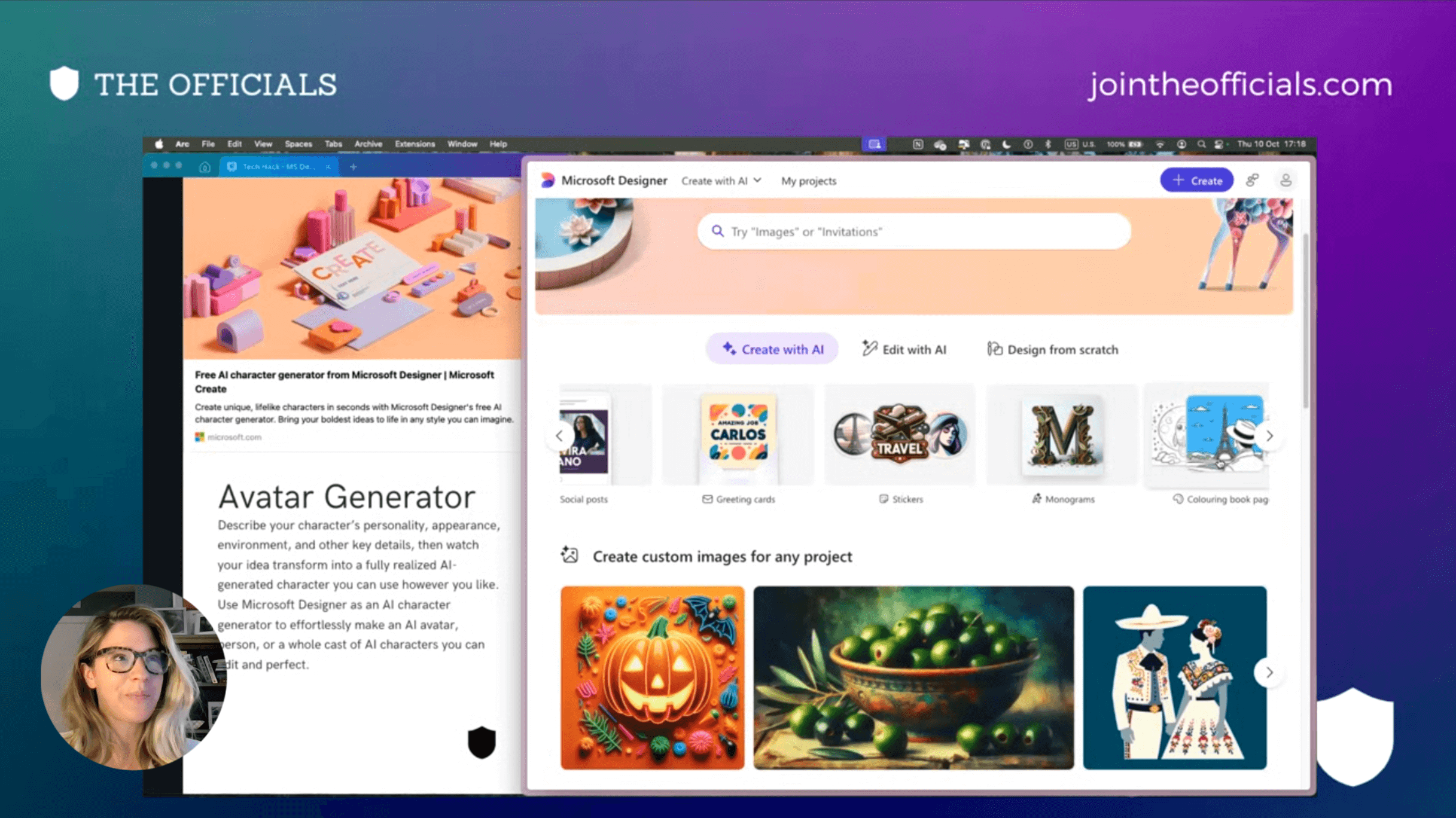
Watch our demo where we showcase how assistants can utilize Microsoft Designer to create impactful images for presentations, events, and internal communications—all without needing extensive design experience.

Sign up as a member today to gain access to this valuable resource and many more!

Learn More
Microsoft Designer for Assistants Replay
Invisible to Influential - 3 tricks to becoming an influential assistant

Invisible to Influential: 3 tricks to becoming an influential assistant

Invisible To Influential: 3 Tricks To Becoming An Influential Assistant

Do you have opinions and ideas you want to express at work but you struggle to find your voice or to be taken seriously? Do you wish you were more confident in the workplace? 

This webinar will give you 3 tricks that will help you be more confident and show you how to flex your influence in the office. This webinar is perfect for admins and assistants that are looking to find their voice and have it be heard and respected.

All attendees get a free downloadable action plan.

Register below to get access to the Invisible to Influential webinar. 

The Influential Assistant Course

The Influential Assistant Course (Cover)

This course is now available on The Officials HQ membership platform. It addresses changing the narrative,  imposter syndrome, a big secret that you don’t know about leaders, how to say no without saying no, tone that resonates, posture and appearance, making connections, public speaking and so much more.

  • 3 course books
  • 12 videos 
  • 7 downloadables 

One member said about The Influential Assistant course, “Yes!!!! Influence and confidence!!! Really enjoying the course books and videos!!!”

Each month a new course drops in HQ. Plus you get access to amazing assistants and admins worldwide ready to support you and offer advice.

I hope I see you there. 

Lots of love,
x Lauren

PS If you are on Instagram check us out at @jointheofficials.